
MultiStopPlanner Help
Start in a minute
- Add stopsTap "Add stops" and paste the addresses: from WhatsApp, a spreadsheet, or one by one.
- Tap "Optimize"The app finds the fastest order and shows how much time you saved.
- Drive"Drive" opens Waze or Google Maps. At the door tap "Done" — the rest of the route is re-planned.
How do I…
- Add addresses from WhatsApp or a spreadsheetAdd stops
- Take a photo of a list and get the addressesAdd stops
- Add addresses you have been to beforeAdd stops
- Get the best order of stopsPlan the route
- Choose when to leave to spend less time in trafficPlan the route
- Avoid toll road 6 or return to the startPlan the route
- Open navigation to the next stopOn the road: the next stop
- Mark a delivery or "Not there"On the road: the next stop
- Undo a mark tapped by mistakeOn the road: the next stop
- Change the order by handThe day screen
- Set a time window, floor, door codeThe stop card
- Make a stop first or lastThe stop card
- Tell the customer on WhatsApp that you’re on the wayOn the road: the next stop
- Understand the customer’s reply ("not home until 5")Customer’s reply and the day in brief
- Take a delivery photo or scan the parcelAt the door: photo, parcel, parking
- Find parking or pay for itAt the door: photo, parcel, parking
- Find a gas station, ATM or toilet on the wayThe day screen
- Spread many stops over several daysThe day screen
- Send the route to a colleague or print itThe day screen
- Copy the stops to tomorrowThe day screen
- Big buttons while driving (driving mode)Driving mode
- Use voice commandsVoice
- Mark stops from the notification without opening the appNotification, widget and shortcuts
- Home-screen widgetNotification, widget and shortcuts
- Repeat a past day or deliver the restHistory and standing routes
- A route that repeats every weekHistory and standing routes
- See the day and month totals, download a reportDay and month totals, reports
- Set work hours, home and navigatorSettings
- Change the language, theme or colorSettings
- Work without internetWithout internet
- What happens during a Home Front Command alertAlerts, Shabbat and holidays
- Delete the account or download my dataSettings
Nothing found. Try another word or write to us: [email protected]
All sections
 Sign in
 The day screen
 Add stops
 Plan the route
 On the road: the next stop
 At the door: photo, parcel, parking
 The stop card
 Customer’s reply and the day in brief
 Driving mode
 Voice
Voice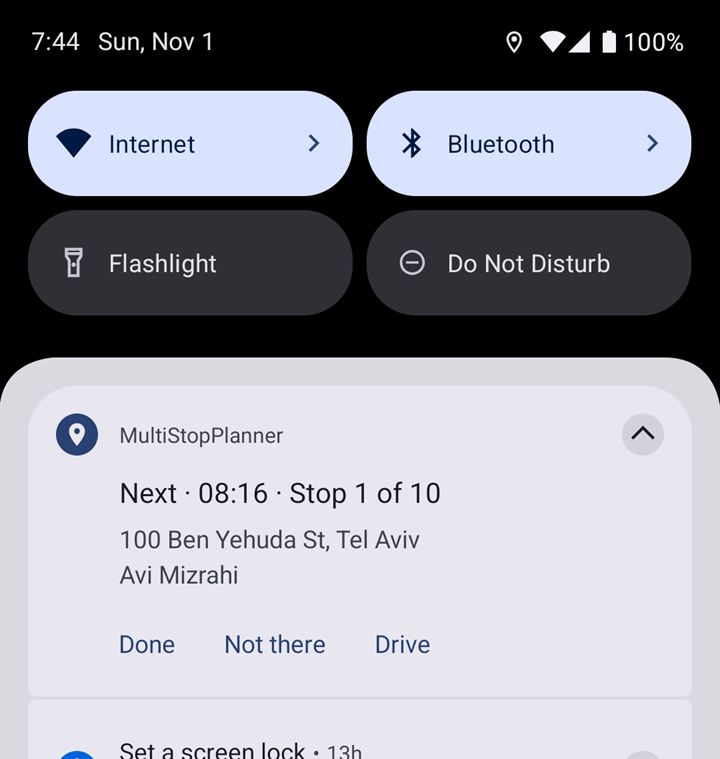 Notification, widget and shortcuts
 Day and month totals, reports
 History and standing routes
 Settings
 Free and Pro
- ?Without internet
- ?Alerts, Shabbat and holidays
Sign in
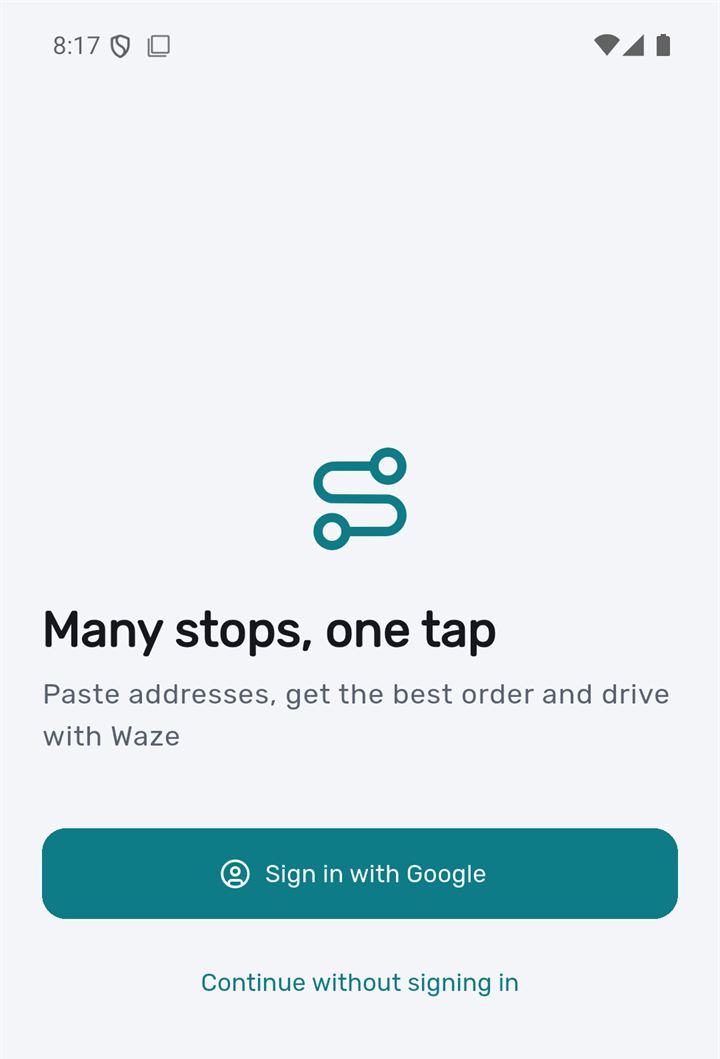
Sign in with Google, or start right away without an account.
- 1Sign in with Google — routes are kept in your account and move to a new phone
- 2Continue without signing in — everything works, but the data stays on this phone only
- On iPhone there is also "Sign in with Apple".
- Started without an account and want to sign in later? In Settings tap "Sign in with Google" — your routes and addresses move into the account.
- Buying Pro or entering a promo code needs a Google sign-in.
The day screen
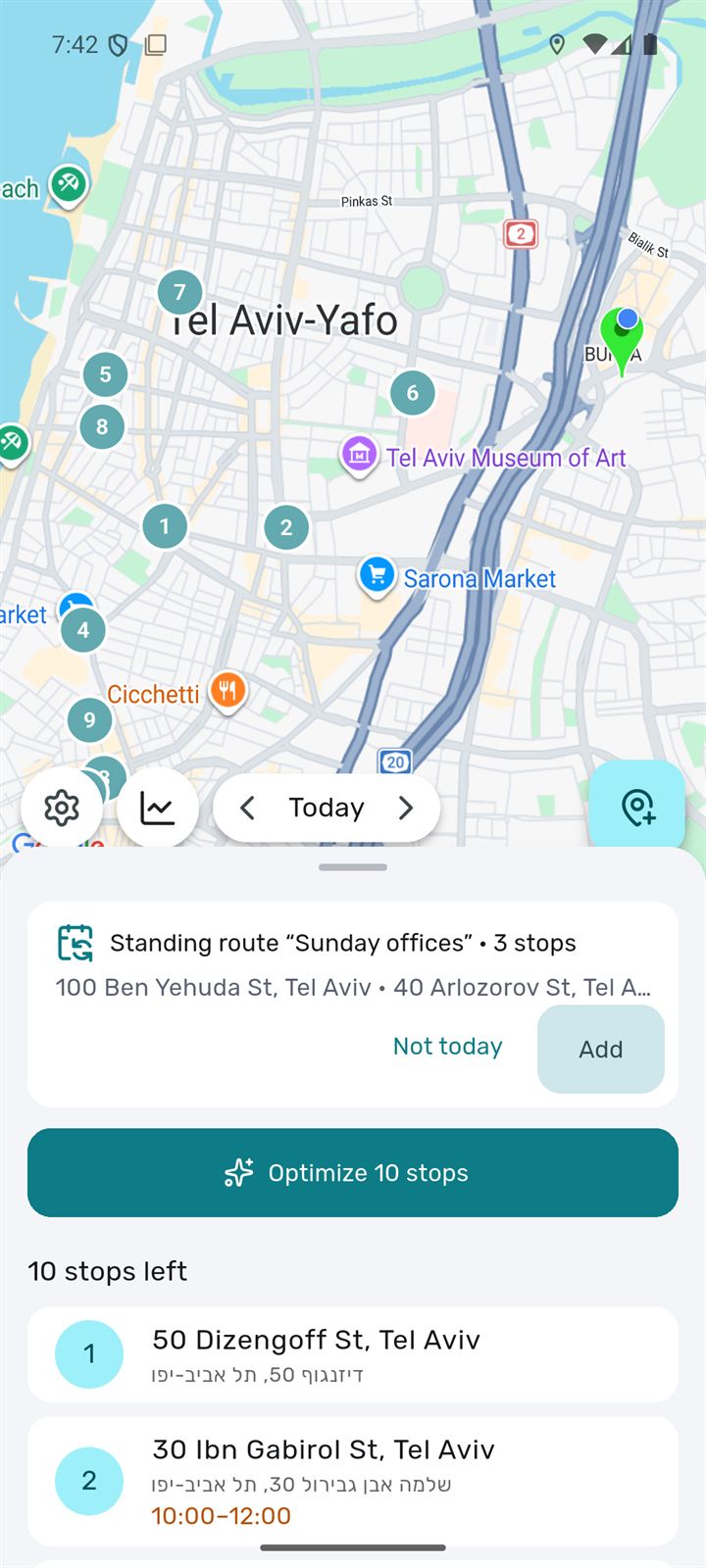
The main screen. The map with the stops is on top, the day’s list below. Pull the list up to see more.
- 1Settings
- 2Day summary and History — one button with a menu
- 3Which day: arrows for yesterday and tomorrow, tap to pick a date
- 4Add stops
- 5"Optimize" — get the best order
- 1Spread over days — when there are more stops than fit in a work day
- 2Share route — a link, Google Maps, print
- 3Along the way — gas stations, ATMs, toilets, cafés
- 4Copy to another day
- You can prepare a route in advance: go to tomorrow with the arrow and add stops.
- If the day is off in your work days, the app says so — you can still plan a route.
- 1Save order
Change the order by hand
Tap "Change order" above the list, drag stops by the handle and tap "Save order". Arrival times are recalculated.
- 1Spread over several days
- 2Move
Spread over days
Shows how many stops fit into each work day (Friday is shorter, Saturday is off). "One more day" and "One day fewer" change the number of days, "Move" moves the stops and plans them there right away.
- 1Link to view
- 2Open in Google Maps
- 3Print or PDF
Share route
"Link to view" — the route on a map without customer names, phones or codes. "Open in Google Maps" — up to the next 10 stops. "Print or PDF" — the list on paper. You can turn the link off at any time.
- 1Fuel
- 2ATM
- 3Toilets
- 4Cafés
Along the way
Finds gas stations, ATMs, toilets and cafés near your route, how far off the route they are and whether they are open now.
Add stops
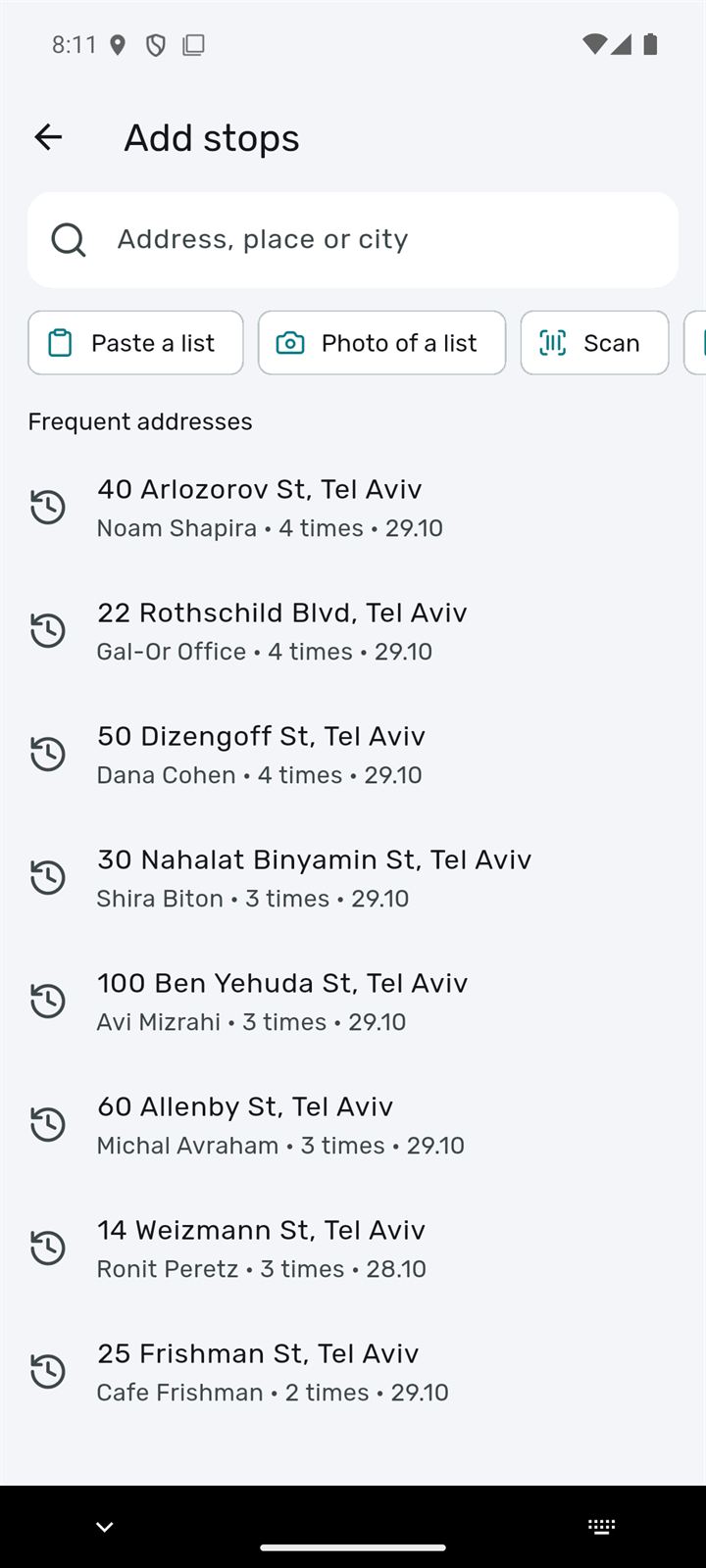
Tap "Add stops". Type addresses one by one, paste a whole list, take a photo, or pick places you have been to.
- 1Search: an address, place or city. Typos and any language are fine
- 2Paste a list — from WhatsApp, notes, Excel
- 3Photo of a list — a delivery note, a screenshot or a handwritten sheet
- 4Scan — a QR code with addresses
- 5Frequent addresses — where you have been; tap to add again
- 1Find addresses
- 1Add — all checked stops
- 2Parse more carefully — smart parsing for a messy message
- One line — one stop. You can add a name, phone, time ("10:00-12:00"), floor and code.
- If the street exists in several cities, the app asks which city.
- Address not found? Tap "Pick the address" and pick an option or a point on the map.
- On a computer, in the web version, you can paste a table from Excel, a Google Sheets link, or upload a CSV file.
- Copied a list and then opened the app? An empty day shows "Text copied — paste it as a list".
Tip. No need to type regular customers again: they are in "Frequent addresses" with the name, phone and code.
↑ Back to topPlan the route
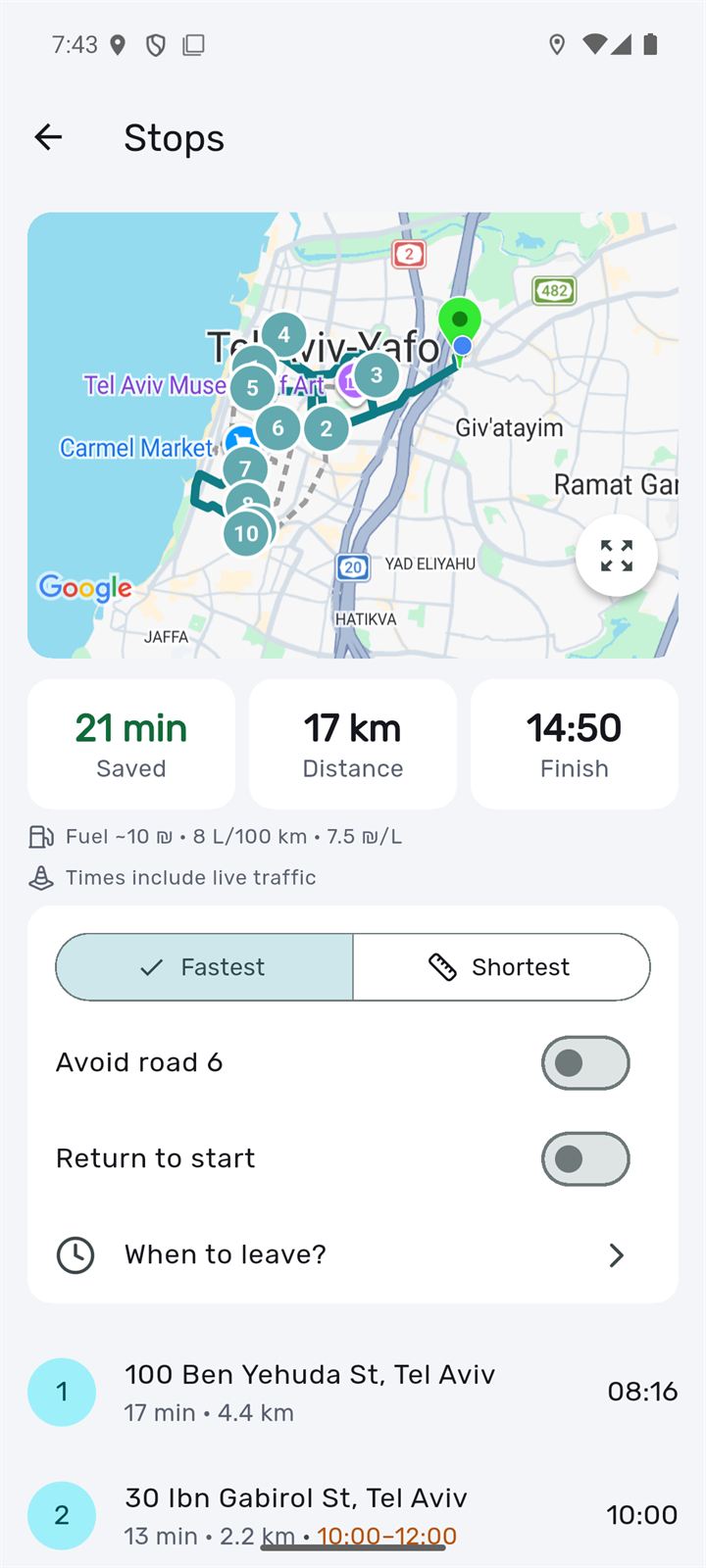
When the stops are in, tap "Optimize". The result opens in a few seconds.
- 1Saved — how much faster the new order is than yours
- 2Distance
- 3Finish — when you finish the last stop
- 4Options: Fastest or Shortest, "Avoid road 6", "Return to start", "When to leave?"
- 1When to leave?
- 2Leave at… — move the departure to the best time
- 1Accept and start — opens navigation to the first stop
- 2Edit — back to the list of stops
- Time windows, first and last stops, minutes at the stop and parking time are all taken into account.
- Below the distance — the approximate fuel cost (consumption and price can be changed in Settings).
- If a stop does not fit (its window can’t be reached, or the work day is too short), it is listed under "Left out of the route" and can be moved to the next days.
- The app warns about arriving on Shabbat or after the end of the work day.
Pro. Live traffic and "When to leave?" are in Pro.
↑ Back to topOn the road: the next stop
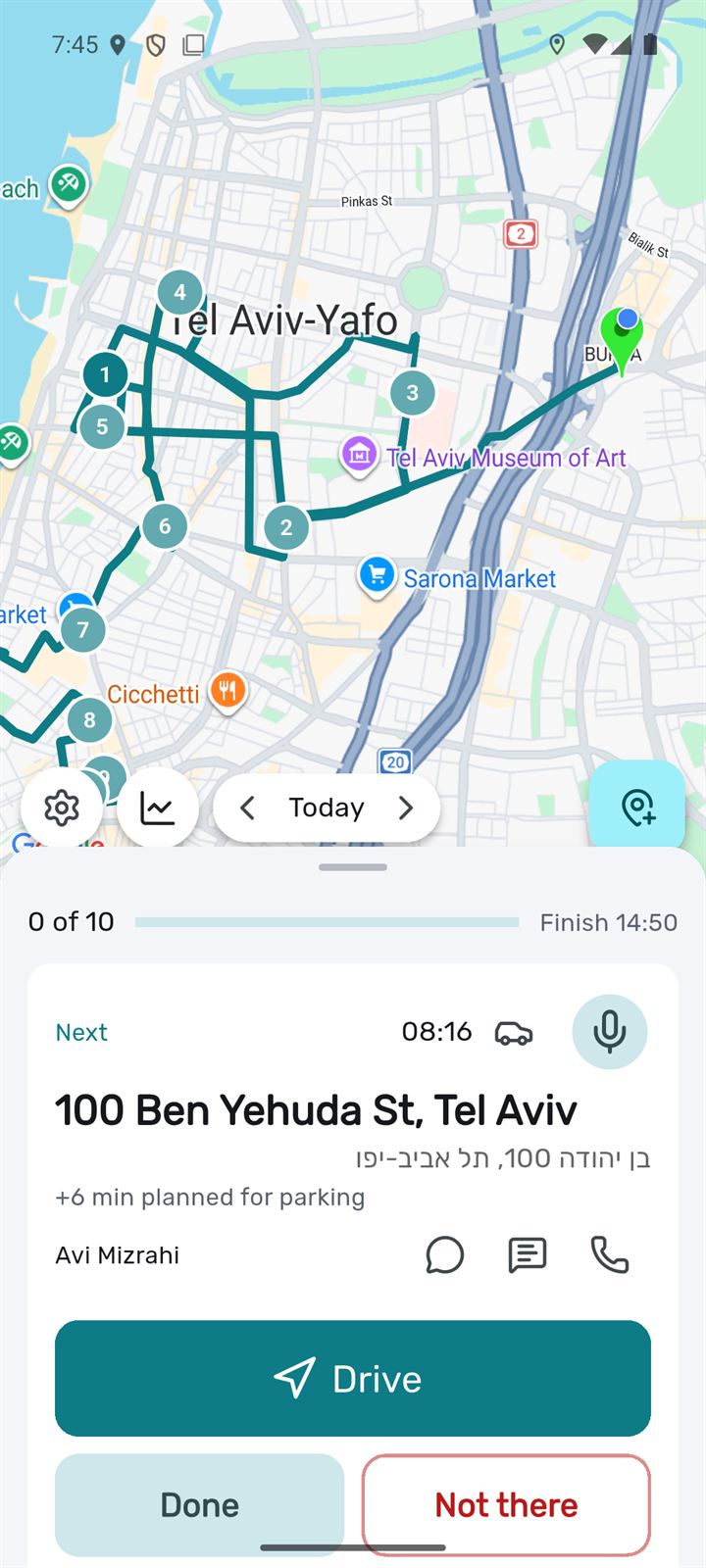
After planning, the next stop’s card is at the top of the list. Everything you need on the road is on it.
- 1The next stop and the arrival time
- 2Drive — navigation in Waze or Google Maps
- 3Done — the stop is completed, the route is re-planned
- 4Not there — the customer wasn’t in
- 5Driving mode — a big screen for the phone holder
- 6Tell the customer on WhatsApp that you’re on the way
- 7Customer’s reply — the app understands what they wrote
- 1The mark
- 2Undo
- Next to the customer’s name — call.
- The microphone in the corner of the card — voice commands (see "Voice").
- Back from the navigator, the app asks "Arrived?" — one tap marks the stop.
- If the arrival times are out of date (say, you left later), "Recalculate" appears.
- No signal? Marks are kept on the phone and sent by themselves when the internet is back.
At the door: photo, parcel, parking
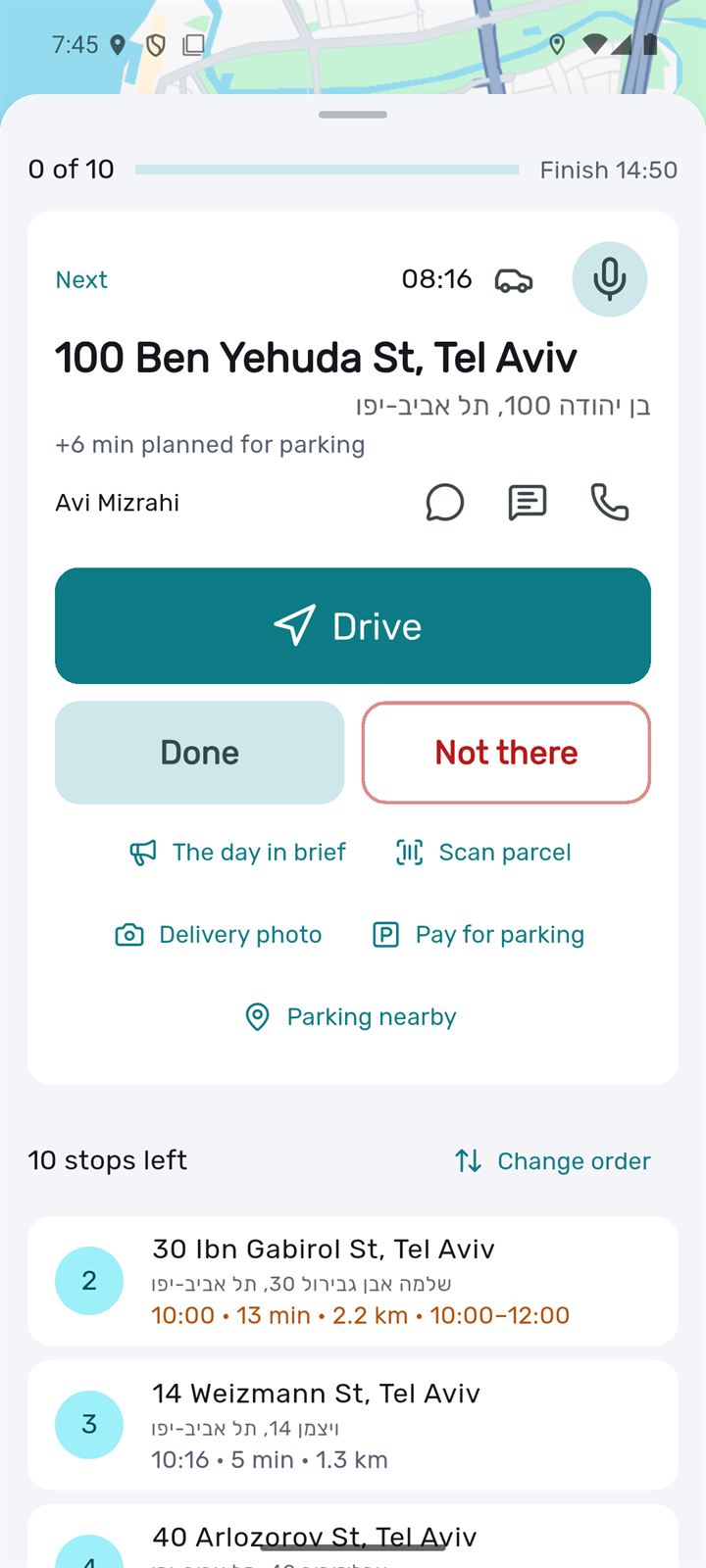
Below "Done" and "Not there" — tools for the delivery place.
- 1The day in brief — spoken: how many stops, when you finish, whom to call first
- 2Scan parcel — the barcode goes into the note, the stop becomes "Done"
- 3Delivery photo — the picture is saved, the stop becomes "Done"
- 4Pay for parking — opens Pango or Cello
- 5Parking nearby — municipal lots and free spaces (Tel Aviv)
- 6How many stops are left
- 7Change order
- 1Parking nearby
- 2Loading zones nearby
- 1Hint
- Photos are kept for 90 days and only you see them. You can also add them in the stop card.
- The scanner also works on the "Add stops" screen: a QR code with a list of addresses turns into stops.
The stop card
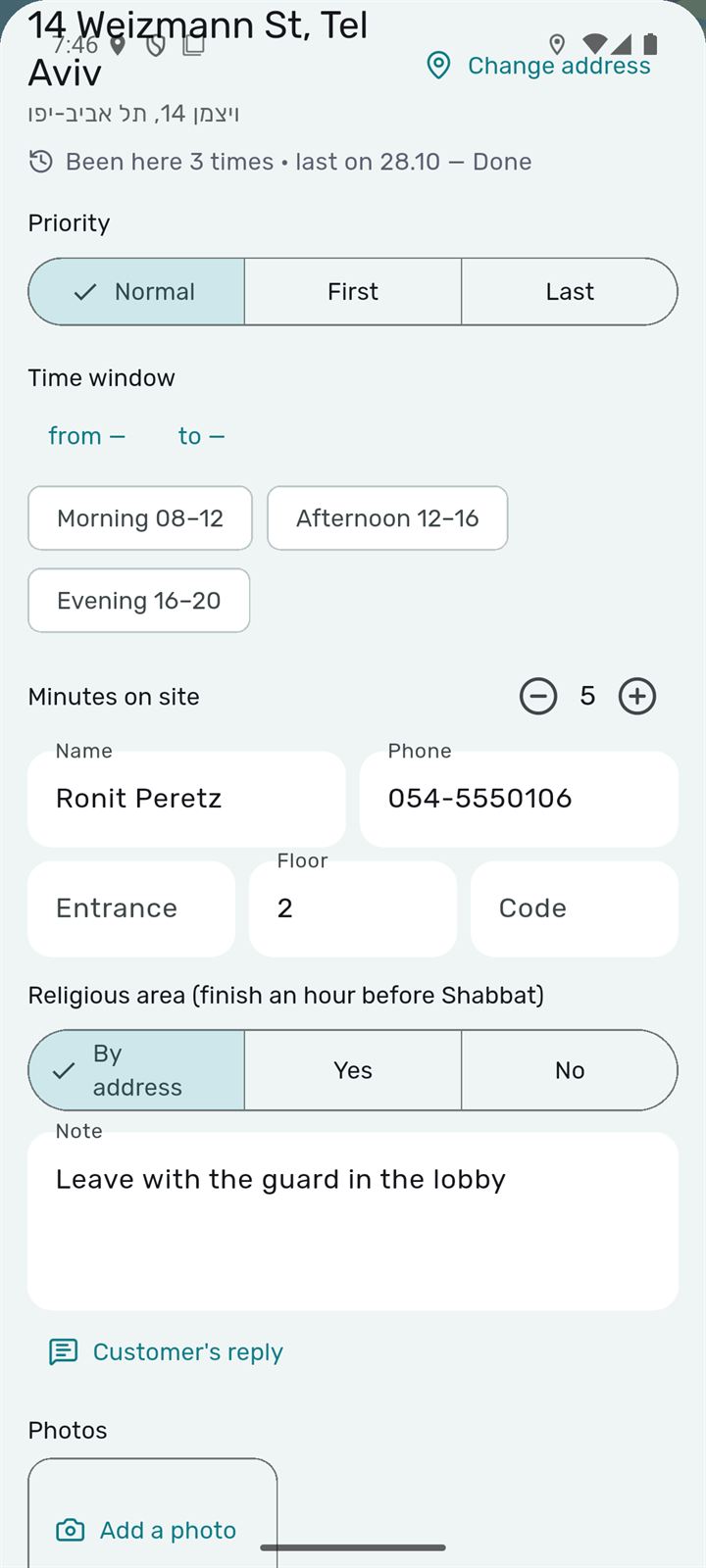
Tap a stop in the list or on the map to open its card.
- 1Priority: normal, first or last
- 2Time window — "from… to…" or the quick Morning / Afternoon / Evening buttons
- 3Minutes on site
- The customer’s name and phone
- 4Been here — how many times and how it ended last time
- Floor
- Door code
- Note
- 1Photos
- 2Save
- 3Delete
- "Change address" — if the stop is in the wrong place.
- If you have been here before, the app suggests "Earlier visits here took about N min" — "Use it" puts that time in.
- "Note from last time" — "Use it" copies it into this stop.
- If the customer wasn’t in several times in a row, you’ll see a warning to call first.
- Religious area: the route tries to finish there an hour before Shabbat. Usually detected by the address.
- A time in the note ("until 14:00") is noticed, and the app offers to make it a time window.
Customer’s reply and the day in brief
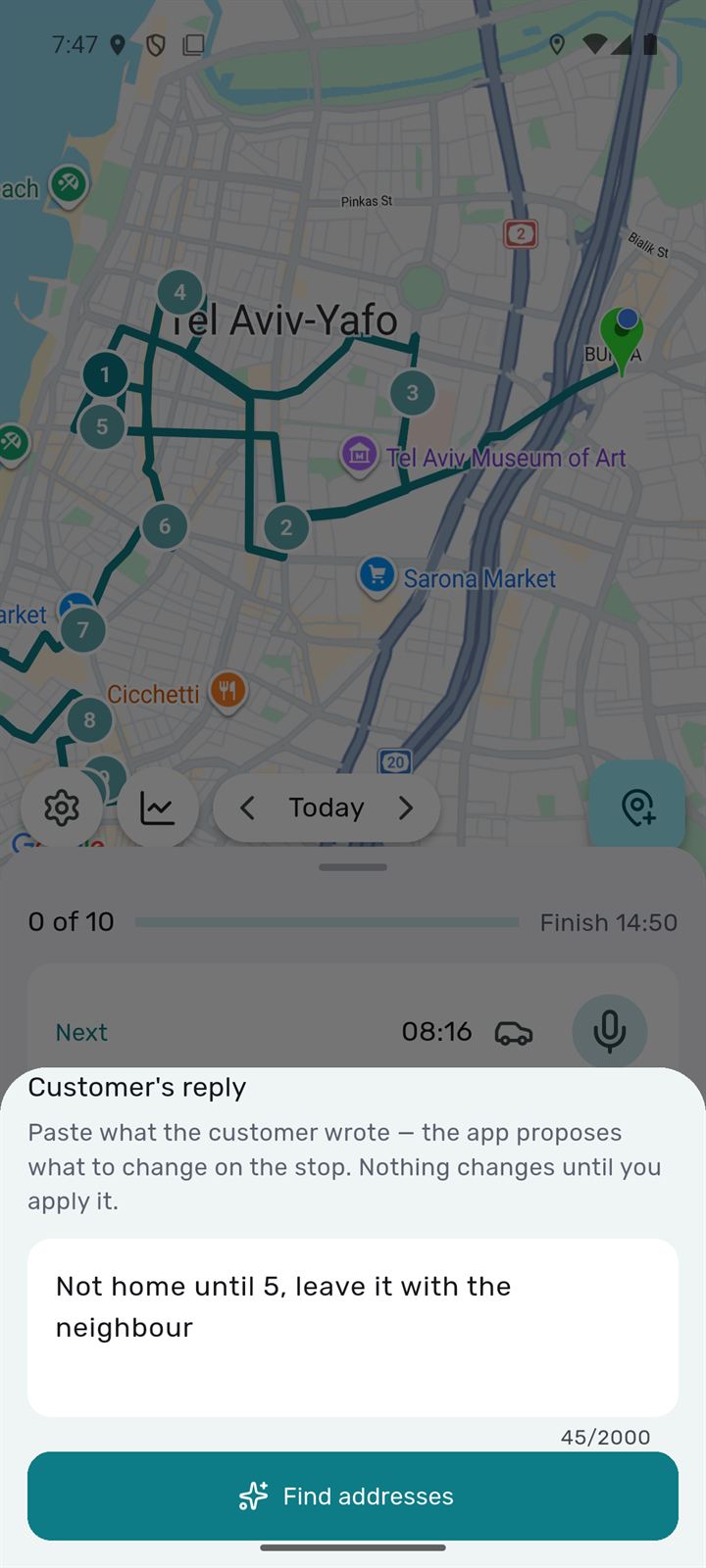
The customer wrote "not home until 5, leave it with the neighbor"? Paste the text — the app suggests what to change.
- 1Customer’s reply
- 2Find addresses
- 1Apply
- 1The day in brief
- Call
- The app may suggest: a time window, a note, moving the stop to another day, or removing it from today if the customer cancelled.
- The day in brief starts by itself in the morning when you first open the app, and later with its button on the card.
Driving mode
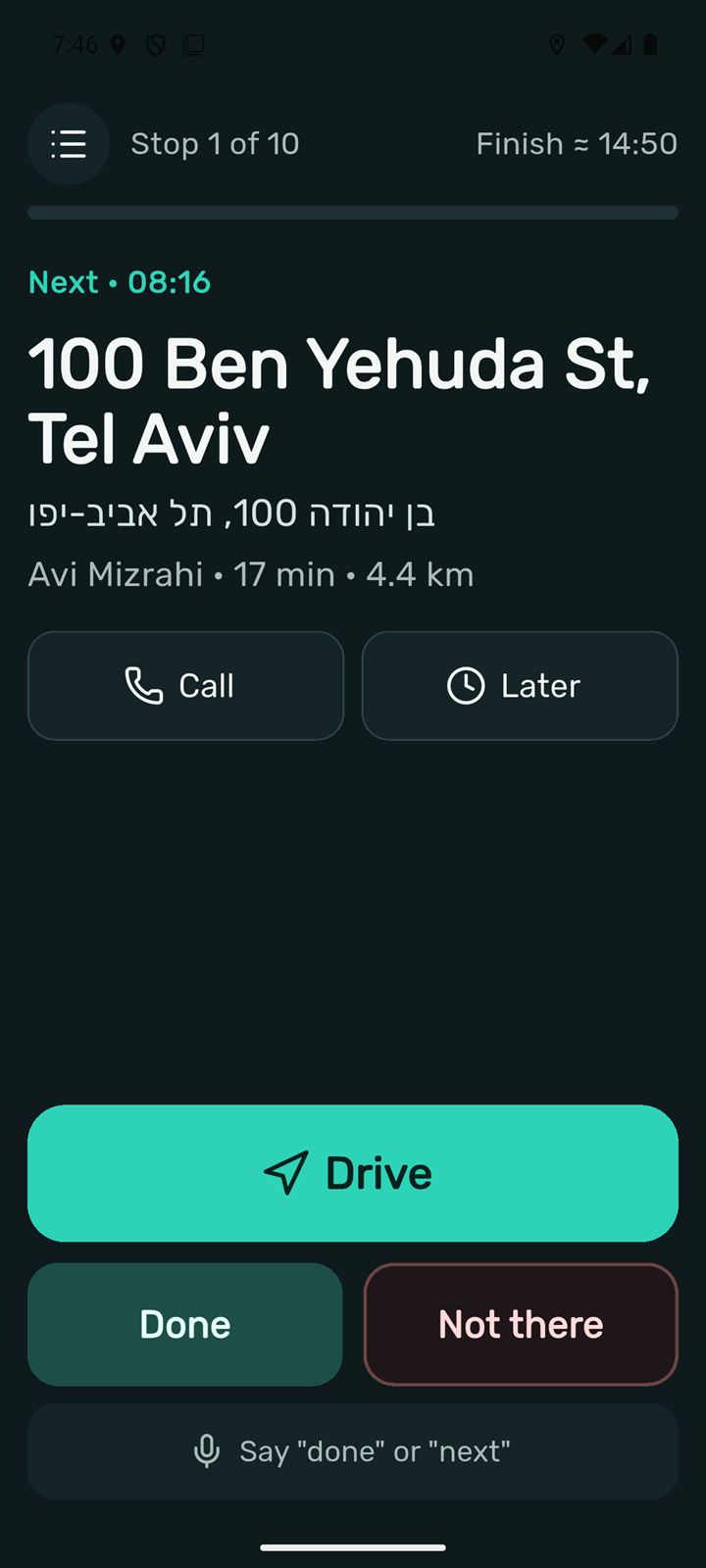
One stop on the whole screen and huge buttons — handy when the phone is in a holder. Open it with the car icon on the next stop’s card.
- 1Stop N of M and the finish
- 2Drive
- 3Done
- 4Not there
- 5To the list — back to the usual screen
- The screen stays on while driving mode is open.
- At night the colors are dark with amber, so they don’t dazzle. In Settings you can choose "Always day" or "Always night".
- Turn on the switch to open driving mode after "Drive" in Settings — back from the navigator, you see the stop big right away.
- Marks come with a vibration: one for "Done", two for "Not there".
Voice
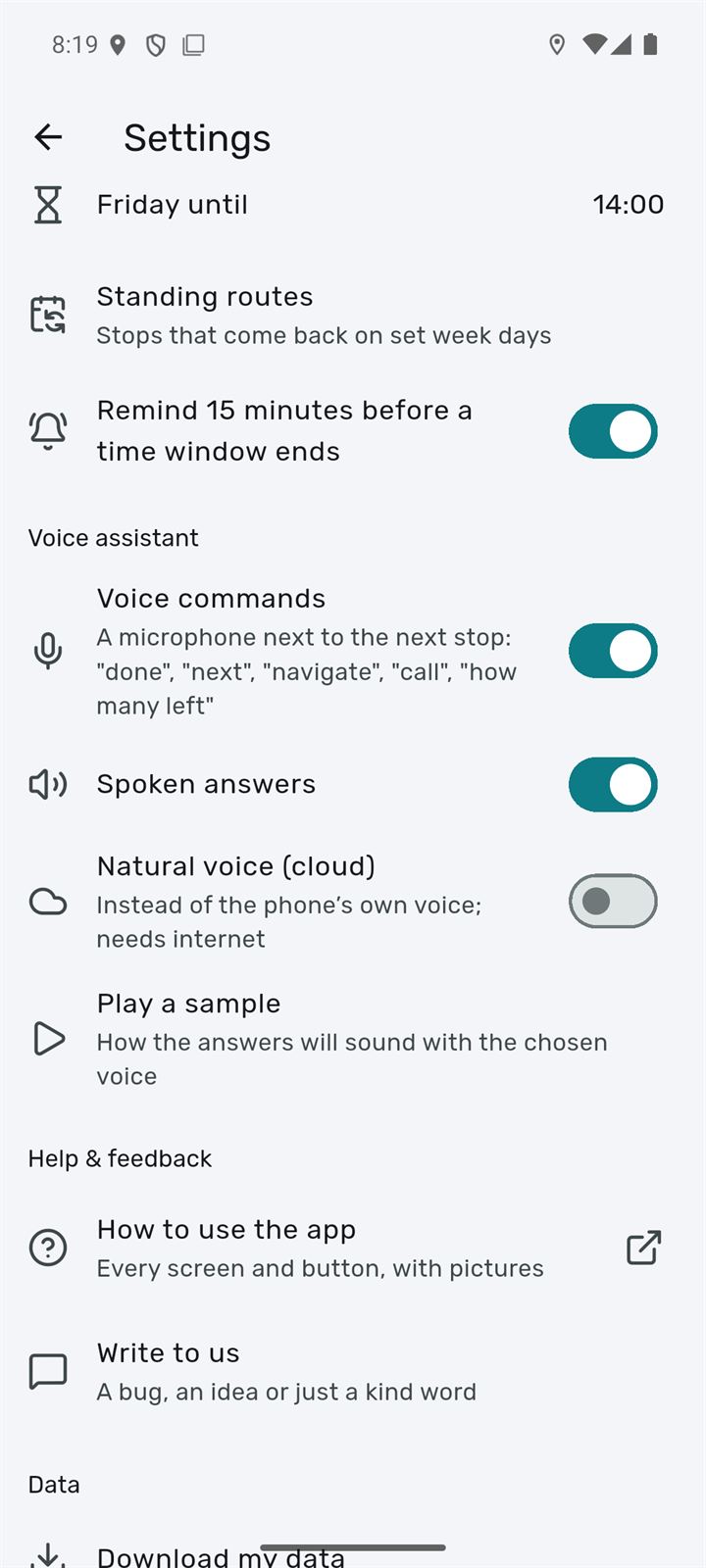
Tap the microphone on the next stop’s card and say a command. Your hands stay on the wheel.
- Voice commands
- 1Spoken answers
- 2Natural voice (cloud)
- "done", "not there"
- "next" — which stop is next and in how many minutes
- "navigate" — open navigation
- "call" — call the customer
- "how many left" — stops and the finish time
- "add 15 Herzl Tel Aviv" — a new stop
- free phrases too: "make Allenby last", "skip Herzl"
- Voice works in Hebrew, Russian and English.
- "Play a sample" in Settings — hear how the answers sound.
Pro. The natural cloud voice is in Pro.
↑ Back to topNotification, widget and shortcuts Android only
On Android the next stop is always at hand — even over Waze and on the lock screen.
- 1Done
- 2Not there
- 3Drive
- Tap "Done" right in the notification — the mark is sent and the notification shows the next stop. No need to open the app.
- Without a signal the mark waits and is sent when you open the app.
- Shortcuts: long-press the app icon — "Add stops", "Paste list", "Driving mode".
- The notification is turned off in Settings → "Next stop in a notification".
- The home-screen widget: long-press an empty spot → "Widgets" → MultiStopPlanner. It shows the next stop with floor and code, progress and finish, and "Done", "Not there", "Drive" — mark stops without opening the app.
- The default size is 4×2: status and time on top, the address, floor and code, the next two stops and the bar in the middle, "Done", "Not there", "Drive" below. Shrink it to one row (long-press and drag the edge) and it shows time, status, address, the bar and round "Done" and "Drive" buttons.
- Narrower sizes too: 2×2 — status, time, address, the bar and "Done" / "Drive" buttons; 2×1 — how many stops are done, the bar and "Drive"; 1×1 — how many stops are left and ahead / behind in minutes (a tap opens the app).
- At the top of the widget — where you are on time: "12 min ahead of plan", "On plan", "8 min behind" or "Will miss the window: …", and the finish. Below it, the day’s bar: a road with a car driving to the flag, or a dot for each stop (a tick for done, a cross for not there). Pick the look in Settings → "Home-screen widget" → "Progress bar".
- On a day without stops the widget offers "Add stops" and "Paste a list", and shows today’s standing route, when Shabbat begins, tomorrow’s stops and this month’s price of 95. Don’t need it — Settings → "Home-screen widget" → "Quiet when there are no trips".
Day and month totals, reports
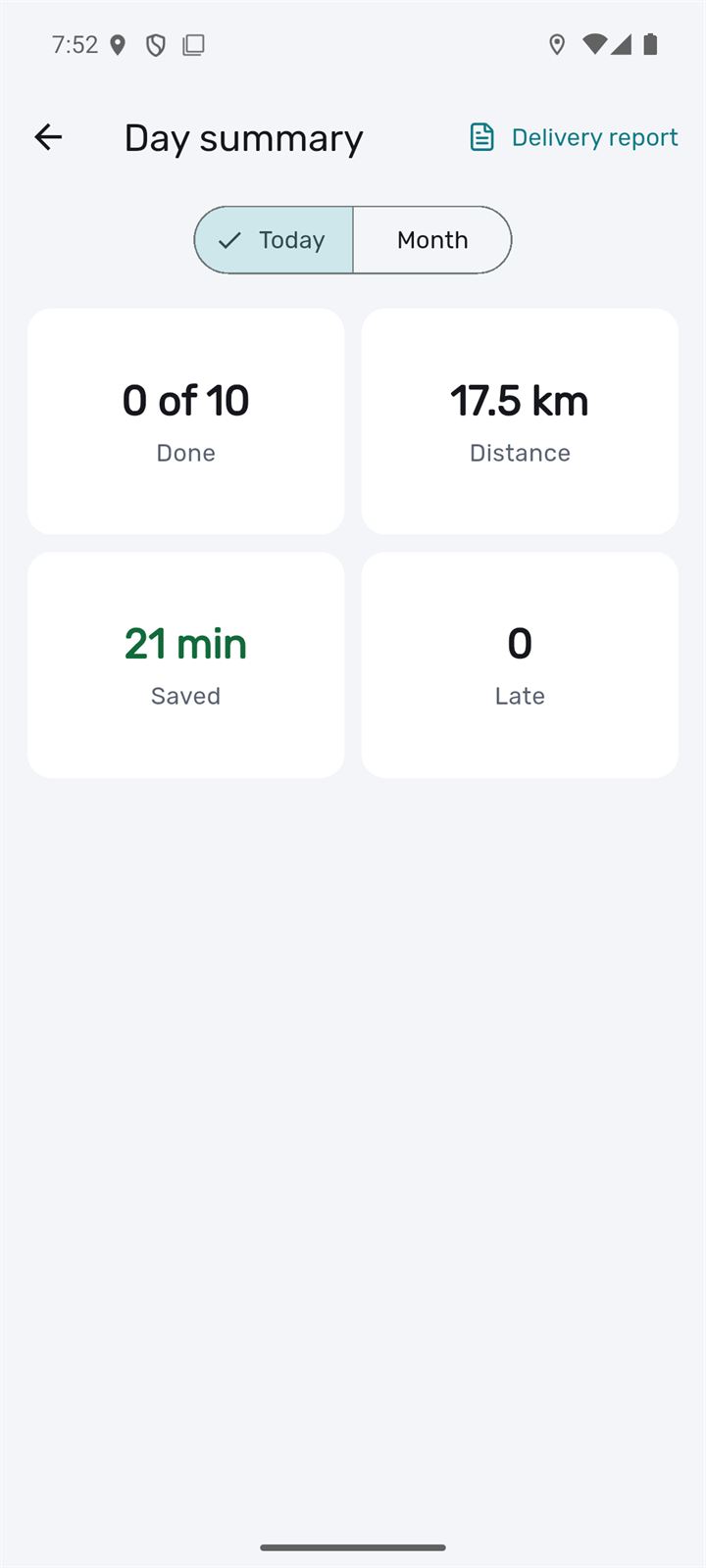
The chart button on the day screen → "Day summary".
- 1Day summary
- 2Delivery report
- 3Month
- 1Days worked
- 2Hours worked
- 3Fuel
- 4Report for the month
- 1Report for a period
- The report opens in the browser: print it, save it as PDF or download a CSV for Excel. The link works for 7 days.
- Periods: today, this week, this month or your own dates.
History and standing routes
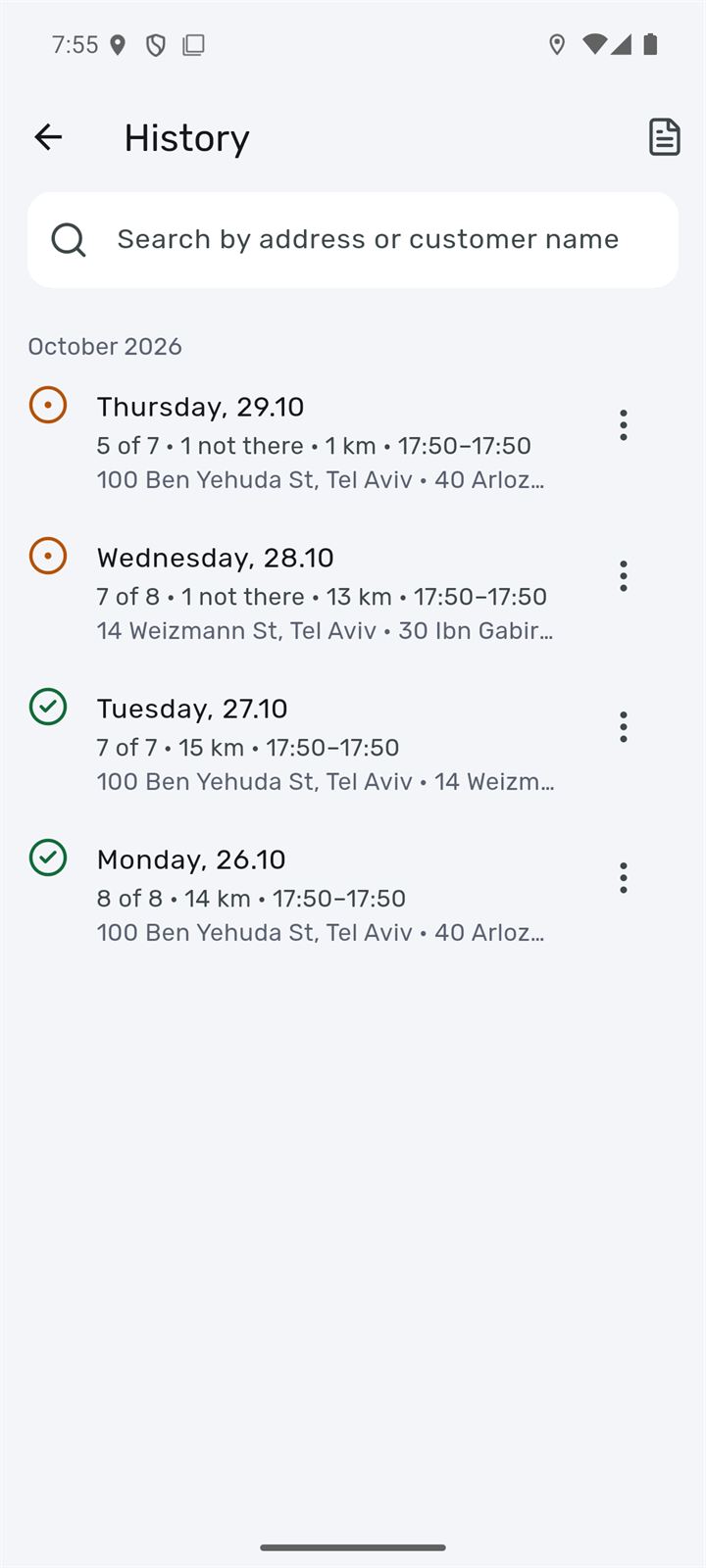
The chart button → "History". All past days, with search by address or customer name.
- Search by address or customer name
- 1More actions — what to do with that day
- 2Report for a period
- 1Drive again — all the stops of that day
- 2Take the stops left — only the ones not done
- 3Choose stops
- 4Standing route — make it repeat
- 5Report for this day
- 1Standing route
- 2Not today
- 3Add
- For "Drive again" and "Take the stops left" the app asks which day: today, tomorrow or another date.
- A standing route is a set of stops that repeats (say, offices on Sundays). Create it from History: "More actions" → "Standing route", then pick the days of the week.
- The list of standing routes is in Settings; you can delete them there.
Settings
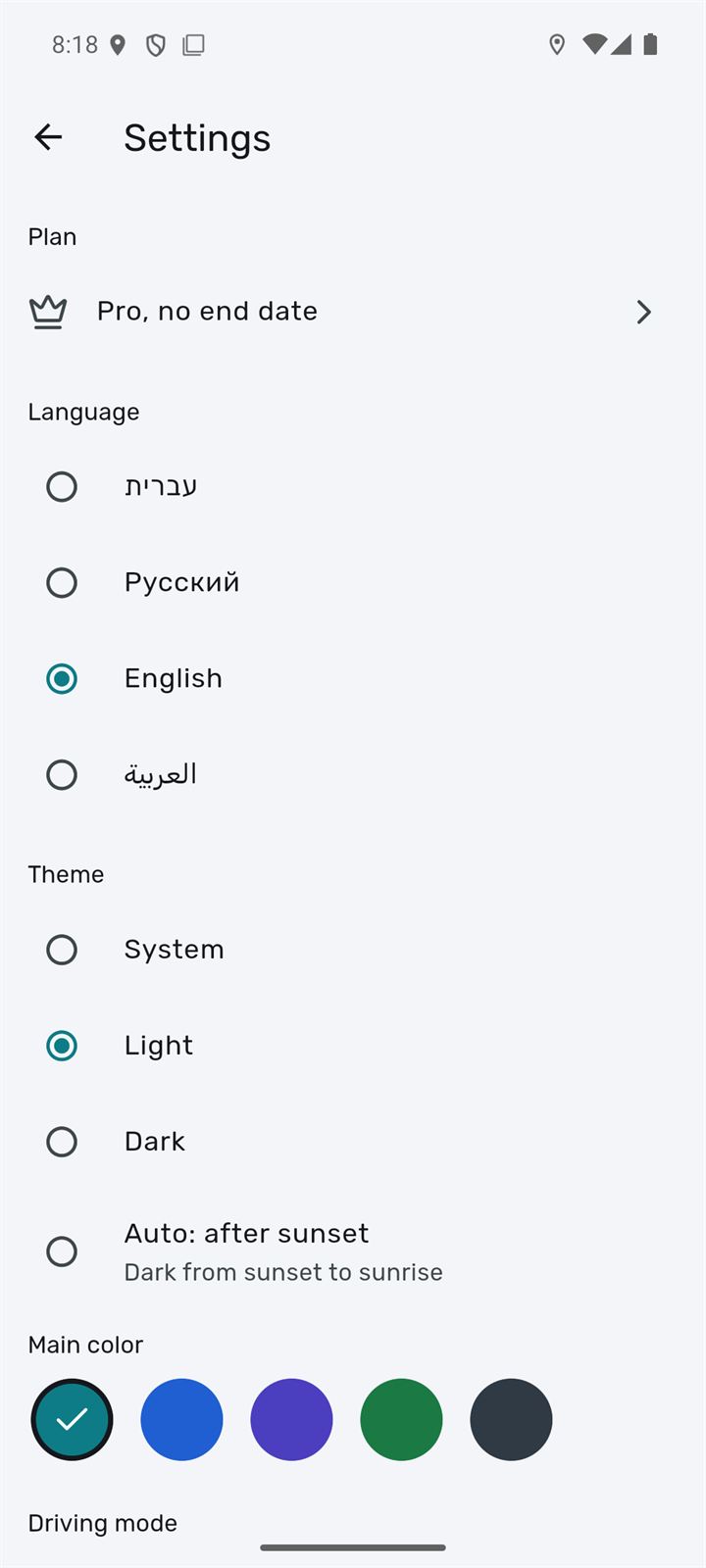
The gear on the day screen.
- 1Plan
- 2Language
- 3Theme: system, light, dark, or auto after sunset
- 1Main color — five options
- 2Driving mode
- Work day: days and hours, a shorter Friday
- 1Home / base — where you start from
- 2Navigation app: Waze or Google Maps
- 1Fuel use
- 2Standing routes
- 3Remind 15 minutes before a time window ends
- 1Write to us
- 2Download my data
- 3Sign out
- 4Delete account
- Work hours matter: tomorrow’s route starts at the start of the day, and if it doesn’t fit, the app warns you.
- Parking app: Pango or Cello — for the "Pay for parking" button.
- "Write to us" — a bug, an idea or a kind word. The app version is attached by itself.
- "Delete account" erases the account, routes and saved places. Cancel a Google Play subscription in Google Play itself.
Free and Pro
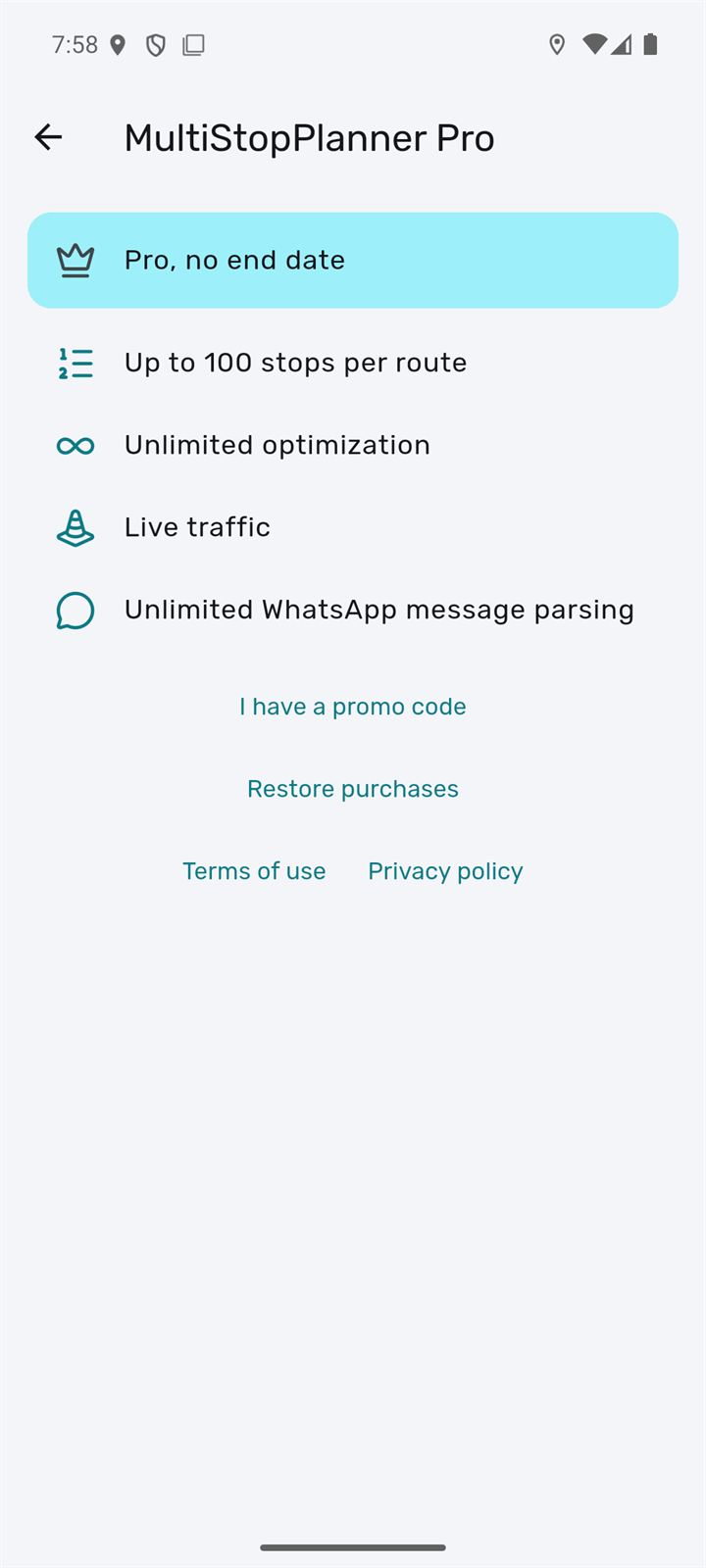
The free plan is fine to start with. Pro is for those who drive to addresses every day.
- Up to 100 stops in a route
- Unlimited optimization
- Live traffic and "When to leave?"
- Unlimited WhatsApp message parsing
- Natural cloud voice
- What’s left today on the free plan is shown under the "Optimize" button.
- Have a promo code? Settings → Plan → "I have a promo code".
Without internet
The day’s route is kept on the phone.
- Without a signal you see the last route ("Route from 08:30") and can mark stops.
- Marks pile up on the phone ("N marks saved on the phone") and are sent by themselves as soon as the internet is back.
- Adding addresses and planning a route need the internet.
Alerts, Shabbat and holidays
The app knows the Israeli calendar and Home Front Command alerts.
- Home Front Command alert: the app shows which stops are in the alert area and how many seconds there are to reach shelter. "Move to the end" moves those stops to the end of the route. For information only — follow the Home Front Command instructions.
- Shabbat and holidays: the day screen shows when they begin, and the route warns if an arrival falls in that time.
- Religious areas: the route tries to finish there an hour before Shabbat.
FAQ
Why isn’t the order the one I typed?
The app looks for the fastest order, keeping time windows and priorities. Want your own — "Change order" above the list.
The wrong navigator opens
Choose Waze or Google Maps in Settings → "Navigation app". If Waze isn’t installed, another map opens.
The address was found in the wrong place
Open the stop → "Change address". Next time it comes from "Frequent addresses" already right.
I tapped "Done" by mistake
Tap "Undo" at the bottom of the screen right after the mark.
"Arrived?" doesn’t show up
It needs location access. Without it, mark "Done" yourself.
Who sees customer names and phones?
Only you. The "Share" link doesn’t show them. Photos are kept for 90 days.
Didn’t find the answer? Write to us from the app: Settings → "Write to us", or at [email protected]